Post Objective: To teach (anyone who wants to know) how to create a customized facebook timeline cover photo using Picnik.com.
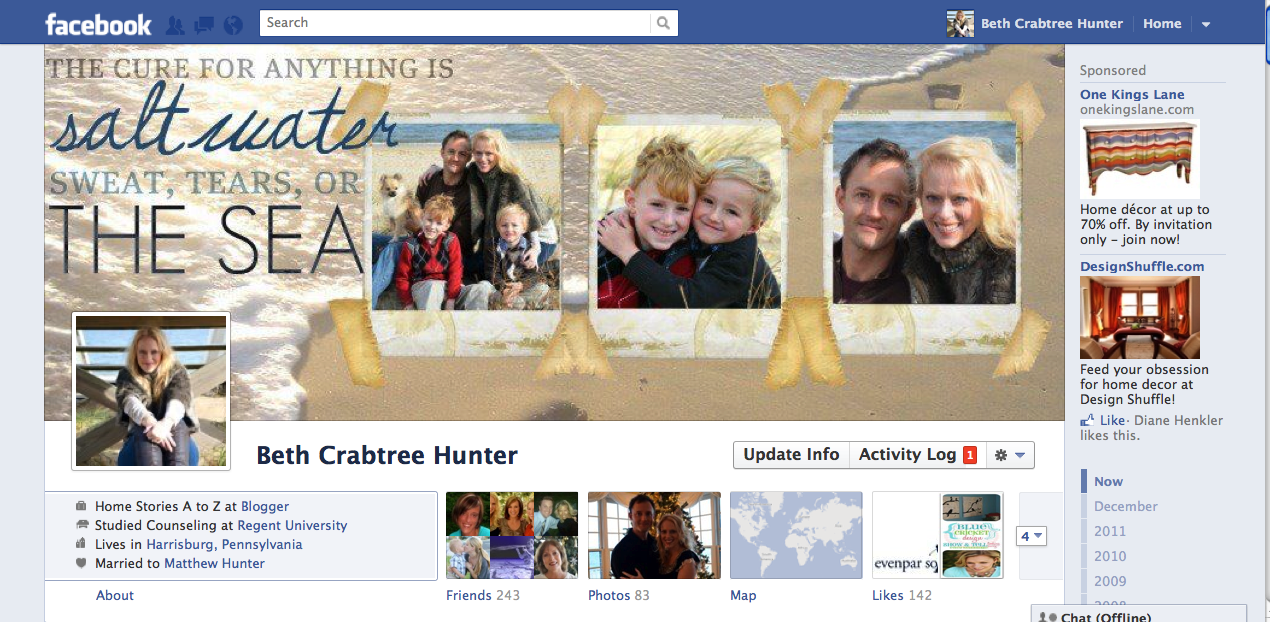
If you’re on facebook, then you’ve probably noticed that some of your friends’ profile pages look a bit different! There is a new app called Timeline that allows you to see your own “wall” in a completely different format. I like it because you can easily go back in time and see everything you have ever posted on your facebook wall. Some people don’t like it for a variety of reasons. If you’re one of those, just skip this post :). (As of now, Timeline doesn’t work for facebook pages and can only be implemented on your personal page.)
Please watch the video if you’d like to learn how to create your own customized timeline cover photo (in less than 10 minutes). For best viewing, make sure you click on the “full screen” option in the bottom right corner. If for some reason you don’t see the video below, please click here to watch.
**Edited to add: Just learned from readers that the “photobasket” option only shows up in the premium version of Picnik. If you’re using the free version, you won’t be able to add photos once your collage is created. I’m so sorry! I would recommend creating it in Picassa which is free. To learn how to create your timeline cover photo in Picassa, click here.**
Update: Picnik is closing so all Premium features are open to everyone. You should be able to create your coverphoto with no problem. Also, if you want to create it using Picasa please click here for that tutorial.


Since Picnik is no longer avaialbe there is another website that you can do the same thing on. It is called http://www.picmonkey.com/
Your page looks nice and the way of creating facebook covers is so great, Smashing Covers also have good collection of FB Cover photos.
I came in to late! Picnik closed! Your tutorial was so amazing and I was so excited…. 🙁
Hi Joan, Never fear. There is an even easier way now. Go to picmonkey.com and click on “create a collage”. Now click on the small icon with rectangles on far left-hand side (underneath the little mountain icon and above the paint icon). From the collage choices, click on FB cover. You will see four different options pop up but all of these can be customized as well. Choose which one you want and then upload your photos and drop and drag into place. Easy peasy!
How kind of you to respond and so quickly! I wanted to put up something special on my Timeline as many of my family members have served in the armed forces. I was forced to go to Smilebox because it was simple but I loved what you were able to do on the original Picnik so I will definitely try picmonkey.com!!
Thank you so much Beth!
Warmly,
Joan
I liked it here. Congratulations text.
You can do it on http://www.picmonkey.com/
it’s easy just click on make a collage.It’s under Edit photo.
Yes, picmonkey is wonderful! It didn’t exist when I wrote this post :).
Thanks for tutorial…although Picnik.com is no longer available. Do you know any other way to do this?
I went to picnik.com and it is closed. 🙁
hello have you tried using Pixlr as an editor for timeline cover photos? if you have please post a tutorial 😀 i really loved Picnik but sadly its already closed and i don’t know other sites just like that one 😀 please? Thank you so much! ^_^
thank you! thank you!
your tutorial was so awesome! ^_^
but its so sad that Picnik will be closing *sniff*
i wanted to use it in the future haha 😀
Hi Beth in your video we can see it say that you need premium feature to go on.Plese let every one know about it . Thank you
umm cud you send me your email adress….i’ll send u a pic dat i want to be a cover but i cant do it
Picnik is now Free! until April so hurry up and use it!
This was so helpful! Thank you Beth!
I watched both help videos and they were/are great! Thanks so much for your kind help…
Cathy 😀
Well this stinks considering it’s kinda useless now. I just tried to make a Picnik account, and apparently they’re closing soon and aren’t taking new customers… 🙁
Picnik has always been free for everyone, they had a paid “premium” account if you wanted to use their extra features, but now those are available to everyone for free as well. You do not have to sign up or create an account, just upload the photos you want to edit and play! They are not closing until April 19th so you have plenty of time to use it… and after April 19th, you just go to google+ which has the same tools. 🙂
Ohh well I’m glad I said something cause I was totally bummed… and now I’m totally excited 😉 THANKS!
Have fun playing 🙂 I am so sad they are closing, but I did try out the google+ version and it is very similar!
Meine Freunde werden mich beneiden, dank für diese tolle Anleitung.
Grüße aus Deutschland!
Sie sind herzlich willkommen! Froh, dass ich könnte helfen.
Maybe I am a little dense or too inexperienced with Picnik, but I am having a hard time following this tutorial. Not sure what help to ask for but the first thing is I am not sure how you got the wood background. I tried skipping this step and I still cannot get it to turn out right. Any tips for the cluless??
Hi! Is it too much if i ask the link for the polaroid photo frame? coz i cant find any thats pretty much the same as yours.thanks in advance! 🙂
whoops found it already thanks! 🙂
I just created one & I love it! I am trying to get all my picnik projects in before it ends 🙁 Do you have any idea on what you will use now that it’s being closed down?
Picknik announced they are officially folding into Google so all the premium options are available to everyone till they close in April…Going to watch the vid and make a cover image tonight….
Hi Beth,
Thanks so much for doing this!! I did your tutorial through Picasa and when I uploaded it to the Facebook cover, it is still chiming away trying to upload it…it’s been about 10 minutes and still not uploaded, did it take forever to upload with you?
I’m a dummy, I made a typo. Had the size at 850×350 instead of 315. Thanks again, I’m so excited!
Thank you so much for creating this tutorial. I was able to make one in picnic I love but when I go to upload it Facebook the right side doesn’t fit into the upload? I am not sure what I am doing wrong. I cropped to be 850 x223 (Picnik wouldn’t let me put in 315 for some reason). Any suggestions?
Hi, this is so great, I would love it if you would do one with Picassa too.
Great tutorial! Thanks for walking us through…I can’t wait to try it!
Lucy
Now I am ready for facebook timeline 🙂
Thanks…
Hey Beth I got it to work. I messed something up when saving I think. Check it out here if you want http://www.facebook.com/profile.php?viewas=1419320673 I need to go back and lighten up the pictures some I think but I love the way it looks.
Beth I made my collage and love the way it turned out but when I choose it for my time line pic it doesn’t fit. Any ideas? I sized it to 850 x 315 I think that is what you said in the video.
Can’t wait to try this. Thanks so much for the video it was great.
Thank you so much for this awesome tutorial! I’m getting tons of comments on my page!
i would love to be able to do this, but i’m totally clueless and need a picasa tutorial! i’m hoping you will post one soon! 🙂 thank you!
i figured it out on picasa! here is my FB page link: https://www.facebook.com/profile.php?id=511361843
i love it! 🙂
Could you please let me know how to do it in Picasa….I have just downloaded it and would love the help
Awesome tutorial. Thanks so much for taking the time to do this. It was easy enough to follow and I am going to have to give it a try!!! Thanks again!!
would love to know how to do this on Picasa. Thanks!! Love your site. Glad I discovered it!
Thank you for sharing this step by step tutorial!
I did it too! Except I used PaintShop Pro X3 with elements I brought in from Scrapbook Factory Deluxe. I don’t know if people can see this if they aren’t on my friend’s list, but here’s mine: http://www.facebook.com/julie.clobes
Fun!
So cute Julie! It turned out great! One of the things I should have mentioned is that the privacy settings on Timeline aren’t great. If you don’t want the general public to see your updates, you have to manually select who you want to share your update with (close friends, friends, public, etc.). Right now, I’m not sure how to hide the Timeline history from the public’s eye.
Can you see timelines without being friends? If so here is my link to my profile page, https://www.facebook.com/aprilcstarkey# because I would love for you to see what I ended up doing because of your helpful video! Thanks so much!
Yay! April it looks fantastic :)! Thanks for sharing it with me.
Is Timeline available for Fan pages?
Not yet unfortunately. I’m hoping they enable that option soon though.
i did it! i made one and love it! Thanks so much for the help! ;0) wish there was a way I could show you!
GREAT tutorial! Just made my cover photo and I love it. ‘Course now I am going to HAVE to make one for every season now. LoL
Im having trouble finding a background image and i really love the one you used…could you tell me what you typed into google to pull up that image? Thanks! ;0) also when I tried to upload another url photo from google of a wooden floor, it didnt stretch all the way across the screen…having troubles! ;0)
Hi April, I think I searched “wood floors white” or something of the sort. I can’t find the image url I used. You’ll need a fairly large photo and you will stretch it across the screen until it fits. Hope that helps!
Thanks for charing this, I loved the timeline since it was first offered and I love it even more now that I am armed with these new skills =)) I have just added you to my blogs that I follow, can’t wait to see what else I can learn 😛
Thanks for sharing! I cannot believe how much adding this will make my FB page look like a blog…which is kind of the direction FB is going! All of my non blogging FB friends are going to be so jealous of my fancy banner! I would love for FB to also offer something similar for pages though I am not sure timeline is the best avenue for that? Hm…I guess we will see in time!
xo Ashley
Fantastic! Thank you so much for this awesome tutorial! I can’t wait to use it to 1) create a new header for an old blog of mine and 2) update my Facebook timeline image.
I have 1 question that you may know the answer to:
What is the maximum width a profile pic can be for a Facebook fan page? I’m asking because this picnik tutorial will also help me create a new fan page profile picture.
Hi Janice, Do you mean just your profile pic on the side of your fan page? The width is 180 and you can make it as long as you’d like.
Yes! That’s exactly what I meant! (I knew you would know).
Another question – is your site designed on the headway theme too?
PS – I found you through a pinterest pin to this tutorial
I would LOVE a Piccassa tutorial as I tried it and couldn’t get photobasket to come up either…..your page looks amazing! 🙂
I would love it if you could do one with Picasa! Cuz I love this look but I don’t want to buy the premium just for facebook, ya know?! 🙂
This is AWESOME! Thank you. I cannot wait until you do a tute on Picasa. I’m working on my timeline right now and struggling with it :-\ At least I was able to get some of it figured out. You are very talented.
Beth,
Thank you so much for the tutorial! You are so talented. Can you tell me how to crop or square my photos to fit into the polaroid templates?
Thanks!
I have iphoto and just used a square template to crop my photos before uploading them. It’s a bit more involved to crop and save each photo in picnik but it’s doable. Just upload the photos you want, click on basic edits, click crop and make sure you pixels are both the same exact number (this will ensure a square). Save each photo and then you can grab them in your photobasket under “history” and add them to your collage.
Hi Beth what a lovely tutorial thanks heaps I wasn’t going to change to the new format on Facebook but now you have me wanting to will be on to Picnik straight away :))
Great post. Maybe this will help me create some cool things for my blog to 🙂 Looking forward to watching the video ! Thank you!
Hi Heather, I edited that part out because I was rambling and it was getting long. I grabbed that photo off of google images the exact same way I entered the polaroid photo. Find a picture you like for a background (that isn’t copyrighted), right click, grab the url, and past it on the “get from website” url tab on picnik. Enjoy!
I just watched it and I do have Premium Picnik but I didn’t see how you added the background of the wooden boards (before the Polaroid frames) . How did you do that?
thank you for such a helpful post!! I’ve shared it here: http://dollarstoremom.com/2012/01/pinterest-picks-21/
What a great step by step tutorial. Unfortunately, I don’t have Picnik premium, so it won’t allow me to do it. I guess it is something I will have to look into purchasing when $ is a little better for us.
Can you do the free Picassa tute? I don’t have premium Picknik!
Thanks!
Linda
Beth, you’re a genius! I will be giving this a try later. It would be really cool to see what everyone comes up with…
Blessings,
Anna
Great tutorial…I’m trying it right now! Thanks!
Okay…done. Very easy…timeline is great!
Yay! So glad it worked for you :).
Thanks for sharing…you make it seem so easy!
I saw someone else doing this on pinterest but I was stumped so this looks so much easier and I use Picnik all of the time. Thanks Beth! Yours looks great!
I was wondering what that was on FB, but haven’t taken the time to figure it out myself. Thanks for sharing and for the great tutorial!
I am having so much trouble with this. After I set up the size it wont let me add my pics to the collage. There is no photobasket. So frustrating! Hope I can figure it out. thanks for sharing!
Oh no! Maybe the photobasket under the edit tab is only a premium feature :(. I’m so sorry! I thought it would show up for everyone.
Very cool. Thanks for the tips! I use Picnik, but never thought of creating a custom timeline picture.
This is so great! Thanks for putting together this tutorial.
Your page looks awesome! I will mark this to watch once the kiddos are in bed! Although I really need to work out how to use FB first reallly LOL!
Thanks for the info girlfriend! I just have a regular pic up there right now, but I’m definitely going to work on one like this right now! 🙂 I love picnik!
TTYL
:0)